Getting started
One command starts Limn on your machine. Then add your repositories, and switch on the parts you want.
You need
- Node 20 or later
- The GitHub CLI, signed in with
gh auth login
Nothing else. No account, no sign-up.
Step 1: Install and run
Run this in a terminal. Limn starts a local server and opens
http://localhost:4000/appin your browser.npx limn-reviewLimn reads GitHub with your
ghtoken and stores no GitHub credentials. Your data stays in~/.limnon this machine.Installed globally (
npm i -g limn-review), the command islimn. For organisation repos behind SSO you may needgh auth refresh -h github.com -s read:org.$ npx limn-review ▸ http://localhost:4000/app # other options $ npx limn-review --port 4100 $ npx limn-review --no-open $ npx limn-review statusStep 2: Connect your AI agent
AI Review, AI Fix and the chats run on your own AI agent tooling: Claude Code or Codex. Limn stores no key and charges nothing.
The first time, press Set up AI (one-time ~110 MB download), shown where the Run button will be, or run:
npx limn-review ai installClaude Code. Sign in once with
claude, or setANTHROPIC_API_KEY.Codex. Add Codex and sign in with your ChatGPT account, or do both from Settings → AI:
npx limn-review ai install codexnpx limn-review ai login codexOn a machine without a browser, add
--device-authto the sign-in. Limn keeps its own Codex sign-in in~/.limn/codexand never touches~/.codex. An OpenAI API key is not supported yet.With both signed in, choose one in Settings → AI (Claude Code by default), or set
LIMN_AI_PROVIDERtoclaudeorcodex. By default, nothing is posted or pushed until you press the button.Before 
After 
Step 3: Set a budget
In Settings, under AI spend.
- On a Claude or ChatGPT subscription, you choose what share of your weekly allowance Limn may use: 5% unless you change it, up to 50%. Limn adds up what its own runs use and compares that with the allowance. Allowances aren't published exactly, so this is an estimate. On Claude Max, Limn asks whether it's Max 5x or Max 20x.
- Each 5-hour session gets the same share as your week, unless you set it separately.
- When Limn has used its share, it stops starting automatic runs until your week or session resets. Your own use of your AI agent is never limited, and runs you start yourself still run after you confirm.
- The header shows Limn's AI quota: how much of its budget is used, or with no budget, how much of your week. Click it to see when your week and session reset. On a subscription, each run's cost shows as a share of your week, not in dollars.
- On an API key, set a weekly budget in US dollars.
Want reviews to use less? The design diagram drawn after each review is on by default and can be turned off for each workspace.
On a subscription- Limn's share of your week
- 5%, you choose
- Each 5-hour session
- same as your week, unless you change it
On an API key- Each week
- US$ you choose
Step 4: Add the scoring model
Limn's own small model scores each review-bot comment from nit to critical, and tags it with a category. It does not take the bot's own label on trust.
It runs at background priority and pauses on battery. Nothing leaves your machine to score a comment. In Settings, under Bot comment scoring, press Set up (one-time ~240 MB download), or run:
npx limn-review ml installOn 300 bot comments graded independently, with every existing label hidden, it agreed 70% of the time. CodeRabbit's own badge agreed 47% of the time, on the 228 it had labelled.
Settings → Bot comment scoring 
What it gives you 
Step 5: Add your repositories
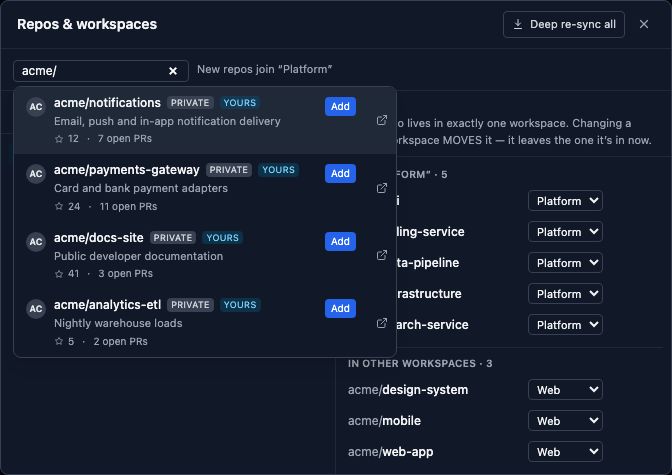
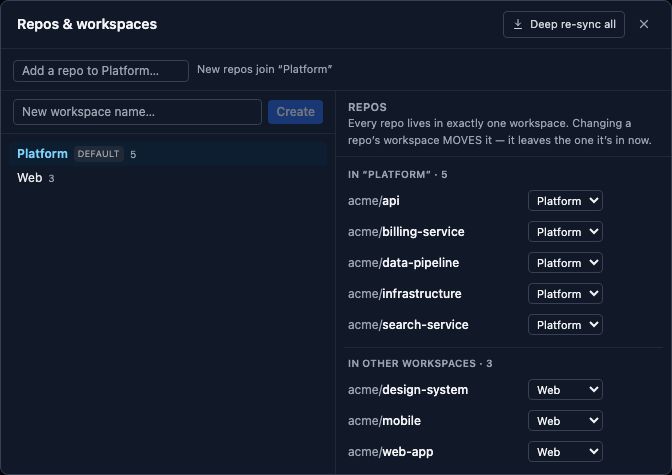
On first run, Limn lists the repositories you have been active in, with up to five ticked. Press the Add … selected button, or search for any repository by name.
Later, open the workspace menu at the top left and choose Manage repos & workspaces. Each repository sits in exactly one workspace, and the workspace you pick sets what the whole app shows.
A new repository fills in its last 14 days first, in seconds, then goes back 90 days in the background.
Step 6: Connect Jira or Linear
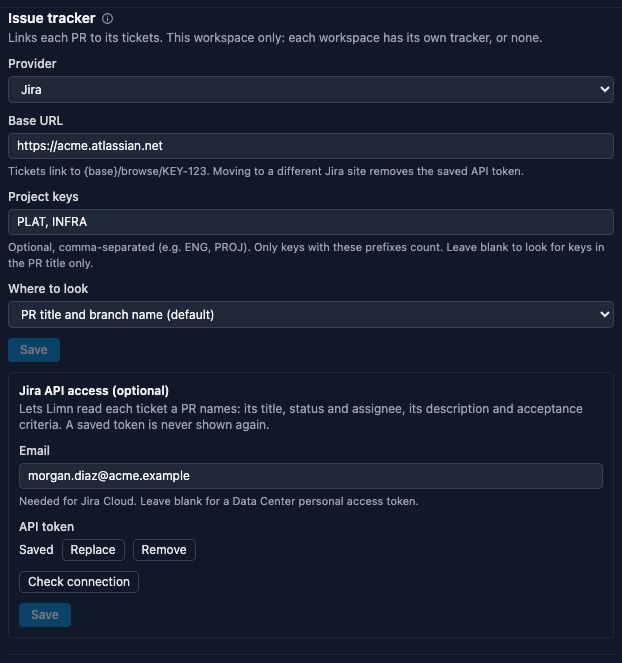
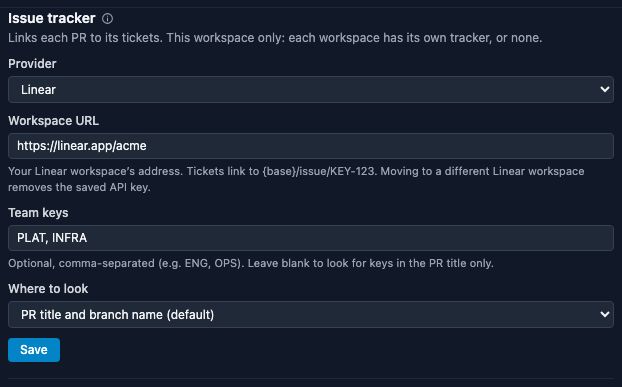
In Settings, under Issue tracker, choose the provider for this workspace. GitHub Issues needs nothing: Limn picks it up when a repository uses it.
For Jira, enter your base URL and, if you like, project keys. For Linear, enter your workspace URL. Press Save.
An optional token lets Limn read each ticket's title, status, description and acceptance criteria. It is never shown again and stays on your machine. Tickets are read when a pull request arrives.
Step 7: Connect Slack
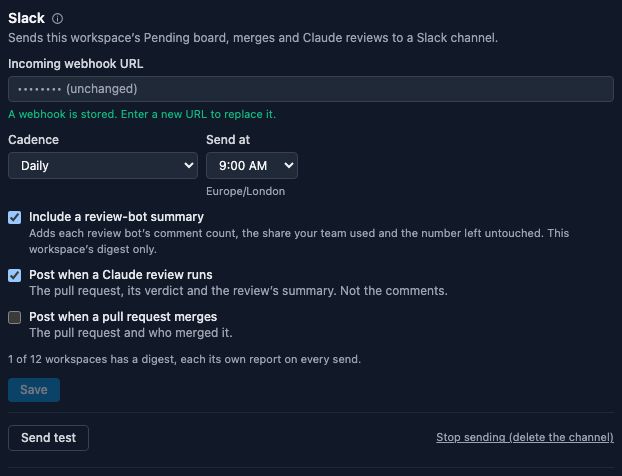
In Settings, under Slack, paste an incoming webhook URL (create one at api.slack.com/apps → Incoming Webhooks). Pick Daily or Twice daily, save, and press Send test.
The digest lists the team's Pending tabs, the top 5 of each. The digest never names the person who set it up. Posts when an automatic review runs or a pull request merges stay off until you tick them.
Each workspace has its own channel, or none (up to 12 workspaces).